Documentation

Everything you need to know about WebP Converter. Installation guides, features, troubleshooting, and best practices.

Getting Started

Installation

You can install WebP Converter in two ways:

Method 1: WordPress Admin (Recommended)

  1. Go to Plugins → Add New
  2. Search for "WebP Converter"
  3. Click Install Now
  4. Activate the plugin

Method 2: Manual Upload

  1. Download the plugin from WordPress.org
  2. Go to Plugins → Add New → Upload Plugin
  3. Select the ZIP file and click Install Now
  4. Activate the plugin
Tip: After activation, the plugin runs a compatibility check automatically. Check the results in WebP Converter → Dashboard.

First Steps & Testing

We strongly recommend following this workflow:

  1. Test on a staging site or local environment first
  2. Use the FREE version to verify compatibility with your theme and plugins
  3. Upload a few test images and verify WebP generation
  4. Check your site frontend in multiple browsers
  5. Only then upgrade to PRO or purchase credit packs
⚠️ Important: Always test with the FREE version before purchasing. We do not offer refunds for compatibility issues that could have been detected during testing.
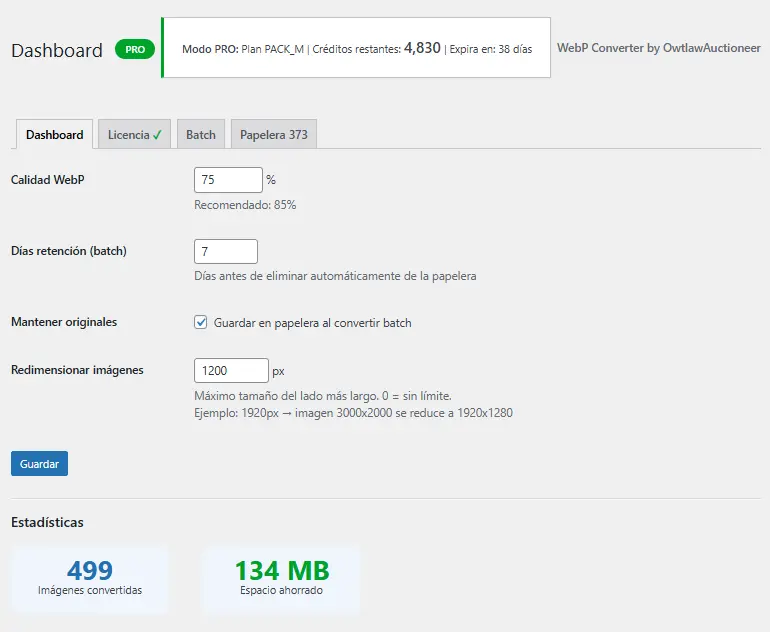
WebP Converter Dashboard

Dashboard principal con configuración de calidad, retención y estadísticas en tiempo real

Compatibility Check

WebP Converter automatically checks your server on activation:

  • PHP Version: Must be 7.4 or higher
  • GD Library or Imagick: Required with WebP support enabled
  • WordPress Version: 5.0 or higher recommended
  • Server: Apache with mod_rewrite or Nginx

If any check fails, the plugin will show a notice with instructions to fix it.

Features

Automatic Conversion

Every time you upload a JPG, PNG, or GIF to your Media Library, WebP Converter automatically creates a WebP version. Your site serves WebP to compatible browsers while maintaining fallback to original formats for older browsers.

Supported Formats

  • JPG/JPEG: Full support with adjustable quality (70-100%)
  • PNG: Converted to WebP with transparency preserved
  • GIF: Static GIFs converted; animated GIFs preserved (not converted)

Quality Settings

Control the balance between file size and image quality:

  • Quality 100: Lossless compression, maximum quality, largest files
  • Quality 85: Recommended balance (default setting)
  • Quality 70: Good compression, smaller files, minimal visible loss
Note: At 70% quality, you can expect 25-85% file size reduction compared to original JPGs, based on our testing.

Smart Resizing (PRO Feature)

Available in all paid plans (credit packs and subscriptions):

  1. Go to WebP Converter → Dashboard
  2. Set "Redimensionar imágenes" to your desired maximum dimension (e.g., 1920)
  3. Save settings

Images larger than your settings will be automatically resized before conversion, saving even more space. You can also resize existing WebP files in batch mode.

How it works: The plugin maintains aspect ratio while limiting the longest side to your configured maximum. Set to 0 to disable resizing.

Batch Processing

Convert your existing Media Library images:

  1. Go to WebP Converter → Batch
  2. Optionally enable "Redimensionar WebP existentes" (PRO only)
  3. Click Iniciar conversión batch
  4. Monitor progress and conversion log in real-time
Free Limit: 100 images/month. Upgrade to PRO for unlimited conversions.
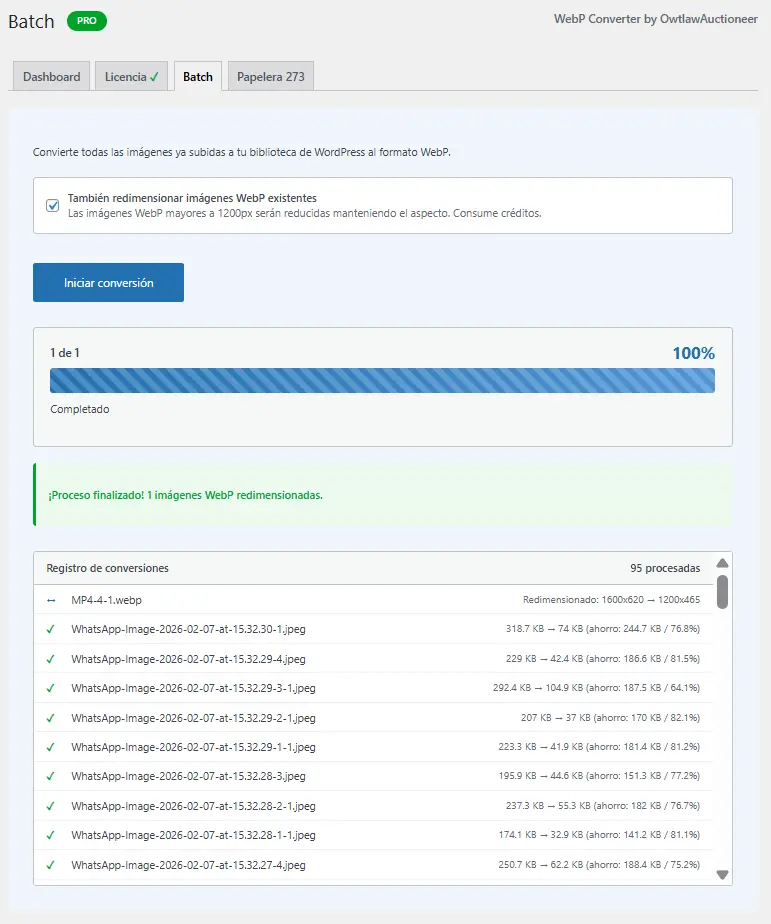
Batch Conversion Completed

Proceso de conversión batch completado con redimensionamiento de WebP existentes

Smart Trash & Restore

Original images are never deleted immediately:

  • Free users: Originals kept for 7 days (configurable 1-30)
  • PRO users: Originals kept for 30 days (configurable 1-30)

To restore an original:

  1. Go to WebP Converter → Papelera
  2. Find the image you want to restore
  3. Click Restaurar

After the retention period, originals are permanently deleted to free up space. You can also manually delete items or empty the entire trash.
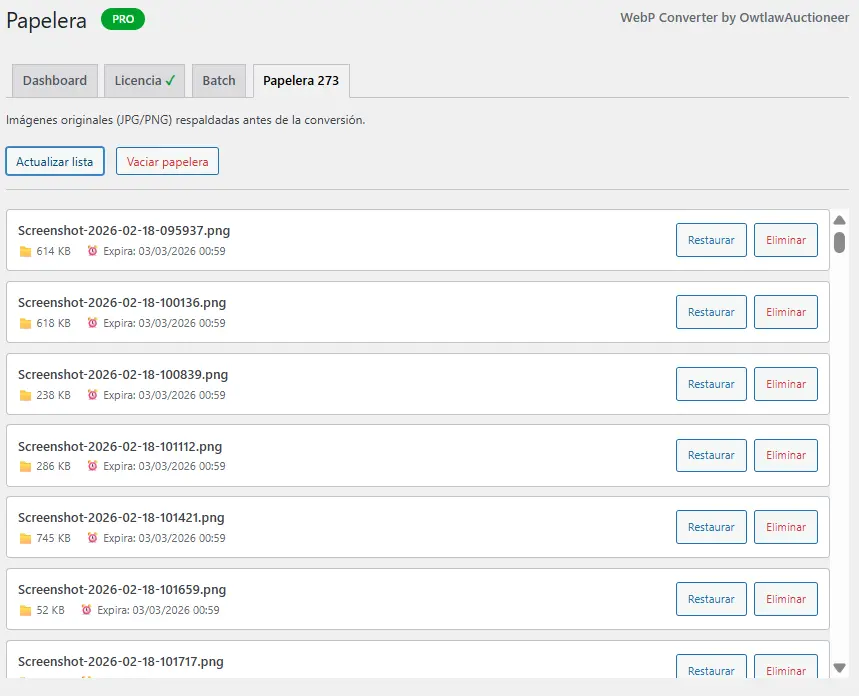
Smart Trash

Papelera inteligente con archivos originales listos para restaurar o eliminar

License System & Credits

PRO users activate their license to unlock unlimited conversions:

  • Enter your license key in WebP Converter → Licencia
  • The plugin syncs with our license server every hour
  • Credit packs: consume credits per image processed
  • Subscriptions: unlimited conversions within your plan limits
  • License can be deactivated and moved to another site

Savings Statistics

Track your optimization results in the Dashboard:

  • Total images converted
  • Total disk space saved
  • Real-time conversion log during batch processing
  • Individual file size comparison per image
Pricing Explained

Free vs PRO Comparison

Feature Free PRO (Any Plan)
Monthly conversions 100 images Unlimited (subscriptions) or by credits
Quality settings (70-100%)
Batch processing Limited (100/month) Unlimited
Smart resizing
Resize existing WebP
Trash retention 7 days (configurable) 30 days (configurable)
Support Community (WordPress.org) Email / Priority

Credit Packs

One-time purchases, perfect for occasional use:

  • XS: 1,000 images - $4.99
  • S: 2,500 images - $6.99
  • M: 5,000 images - $8.50 (Popular)
  • L: 7,500 images - $9.99
  • XL: 10,000 images - $11.50

Pack Features:

  • Valid for 45 days (extends to 90 days with low usage)
  • Smart resizing included
  • Email support
  • Configurable trash retention (1-30 days)
Auto-Extension: If you use less than 5% of credits at day 45, you get 30 extra days. If still under 5%, another 15 days (max 90 days total).

Annual Subscriptions

Unlimited conversions for professionals and agencies:

  • Personal: 1 website - $12/year
  • Freelancer: 3 websites - $29.99/year
  • Studio: 10 websites - $69.99/year
  • Agency: 50 websites - $119.99/year

Subscription Features:

  • Unlimited conversions
  • No file size limits
  • Smart resizing included
  • 30-day trash retention (configurable)
  • Priority support
  • Monthly reports (Freelancer+)
  • White-label option (Studio+)
  • API access (Agency)

Which Should I Choose?

Choose Credit Packs if:

  • You have a single site with moderate image uploads
  • You prefer one-time payments
  • You upload less than 10,000 images per quarter

Choose Annual Subscription if:

  • You manage multiple websites
  • You want unlimited conversions
  • You prefer predictable yearly costs
  • You need priority support

Configuration

Setting Quality Levels

Recommended settings by use case:

  • Photography portfolios: 85-90% (quality priority)
  • Blogs/Content sites: 75-85% (balanced)
  • E-commerce products: 80-85% (detail important)
  • Thumbnails/previews: 70-75% (speed priority)

Access settings at: WebP Converter → Dashboard

Range: You can set any value from 70% (maximum compression) to 100% (lossless).

Smart Resizing Setup

Prevent oversized images from slowing your site:

  1. Go to WebP Converter → Dashboard
  2. Set "Redimensionar imágenes" to your desired maximum (e.g., 1920)
  3. Set to 0 to disable resizing
  4. Save settings

The plugin automatically calculates the new dimensions maintaining aspect ratio.

Trash Retention

Configure how long to keep original backups:

  1. Go to WebP Converter → Dashboard
  2. Set "Días retención (batch)" to your preference (1-30 days)
  3. Enable "Mantener originales" to use the trash system

After this period, originals are permanently deleted automatically.

Usage Guide

Converting Existing Images

To process your current Media Library:

  1. Navigate to WebP Converter → Batch
  2. Check your available credits (shown at top)
  3. Optionally enable "Redimensionar WebP existentes" (PRO)
  4. Click Iniciar conversión batch
  5. Monitor progress and conversion log in real-time
  6. Review results when complete
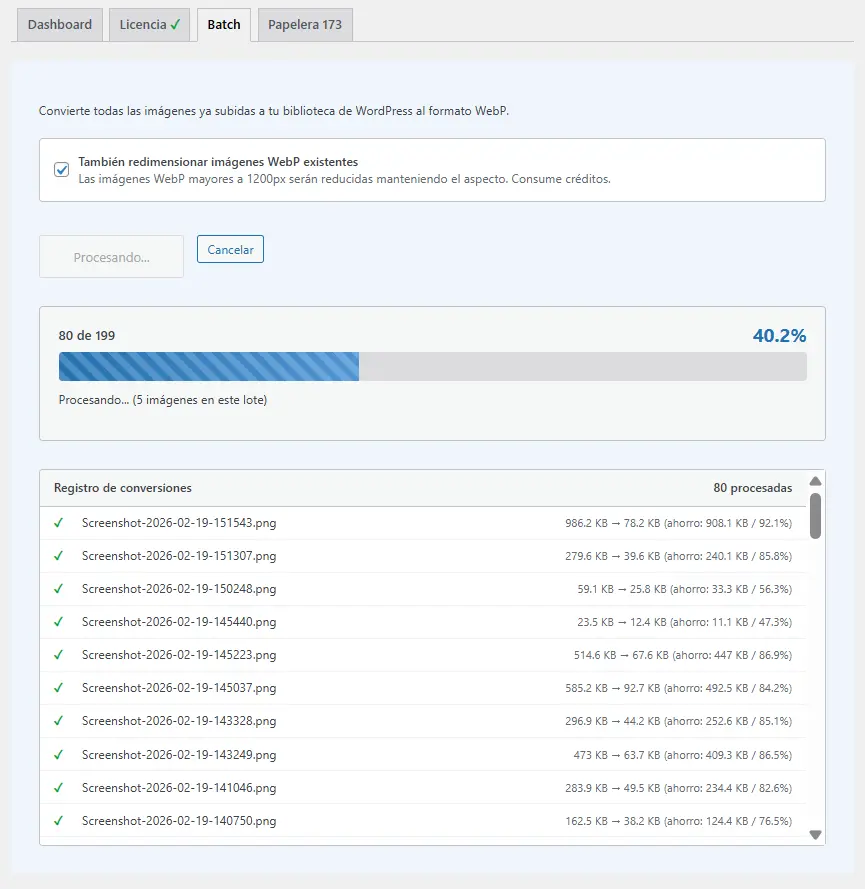
Batch Conversion in Progress

Conversión batch en progreso mostrando estadísticas de ahorro por archivo (hasta 92.1% de reducción)

Server Load: Batch conversion is resource-intensive. For large libraries (1000+ images), run during low-traffic periods or split into smaller sessions.

Restoring Original Images

If you need to revert a conversion:

  1. Go to WebP Converter → Papelera
  2. Search or browse for the image
  3. Click the Restaurar button
  4. The WebP version will be replaced by the original

Note: Restoration is only possible during the retention period. After that, originals are permanently deleted.

Checking Conversion Status

Monitor your optimizations:

  • Dashboard: Overview of total savings and statistics
  • Media Library: WebP indicator on converted images
  • Batch Log: Real-time conversion details with file sizes

Managing Your License

Activate, check, or deactivate your PRO license:

  1. Go to WebP Converter → Licencia
  2. Enter your license key and click "Activar Licencia"
  3. View current credits, expiration, and sites active
  4. Use "Desactivar licencia" to move license to another site

The plugin automatically syncs with our license server every hour to update your credit balance.

Troubleshooting

Images Not Converting

If uploads aren't being converted:

  • Check available credits (Free: 100/month, PRO: check license)
  • Verify image format is supported (JPG, PNG, GIF)
  • Check that animated GIFs are being skipped (expected behavior)
  • Verify PHP has GD or Imagick with WebP support
  • Check available server memory

WebP Not Showing on Frontend

If browsers aren't receiving WebP:

  • Clear all caches (WordPress, hosting, CDN like Cloudflare)
  • Verify .htaccess rules are present (Apache servers)
  • For Nginx, ensure config includes WebP rewrite rules
  • Check browser compatibility (Chrome, Firefox, Safari 14+, Edge)
  • Test with browser DevTools Network tab

Plugin Conflicts

Known conflict scenarios:

  • Image optimization plugins: Disable other WebP or image optimization plugins
  • CDN plugins: Configure CDN to serve WebP files or exclude image paths
  • Lazy loading plugins: May interfere with WebP fallback detection
  • Security plugins: May block batch processing due to request limits
Testing: If you experience issues, deactivate other image-related plugins one by one to identify conflicts.

Server Requirements Errors

"GD/Imagick not found":

  • Contact your hosting provider to enable PHP GD or Imagick extension
  • Verify WebP support is compiled into the extension

"Memory limit exceeded":

  • Increase PHP memory limit in php.ini or wp-config.php
  • Recommended: 256MB minimum for batch processing

License Issues

"Licencia inválida":

  • Verify you entered the key correctly (format: WCO-XXXX-XXXX-XXXX-XXXX)
  • Check that the license hasn't expired
  • Ensure you haven't exceeded site limits for your plan

Credits not updating:

  • The plugin syncs every hour; click "Actualizar lista" to force sync
  • Verify your internet connection can reach webpconverter.pro

Policies & Safety

⚠️ Backup Recommended

Before using WebP Converter, we strongly recommend:

  • Create a full backup of your WordPress site (files + database)
  • Test the plugin on a staging or development environment first
  • Verify critical images are backed up separately
  • Keep originals until you've verified WebP versions work correctly
Important: While WebP Converter keeps originals in trash for 7-30 days depending on your plan, we are not responsible for data loss. Always maintain your own backups.

Content Liability Disclaimer

WebP Converter is provided "as is" without warranties of any kind.

By using this plugin, you acknowledge and agree that:

  • We are not responsible for any loss of images, data, or content
  • We are not liable for any website downtime or performance issues
  • We are not responsible for compatibility issues with third-party themes or plugins
  • You use the plugin at your own risk
  • You are responsible for maintaining adequate backups of your content

Best practices to minimize risk:

  • Always test on staging first
  • Start with the FREE version to verify compatibility
  • Process images in small batches initially
  • Monitor your site after conversion
  • Keep regular backups

Refund Policy

Our refund policy is designed to be fair while preventing abuse:

  • We offer a FREE version specifically for testing compatibility
  • All sales of credit packs and subscriptions are final
  • No refunds for "change of mind" or "purchased by mistake"
  • No refunds for compatibility issues detectable in the FREE version
  • Refunds may be considered only for technical failures on our end, evaluated case by case
Why no refunds? We provide a fully functional free version so you can verify everything works with your setup before paying. Please use it.

Testing Before Purchase

We cannot stress this enough:

  1. Install the FREE version first
  2. Upload 10-20 test images
  3. Verify WebP files are created
  4. Check your site displays images correctly
  5. Test on different devices and browsers
  6. Verify compatibility with your caching/CDN setup
  7. Only then purchase PRO or credit packs

This process protects both you and us from unnecessary support issues.

Compatibility

WordPress Compatibility

  • Minimum recommended: WordPress 5.0
  • Fully compatible: Latest WordPress version
  • Works with Classic Editor and Block Editor (Gutenberg)
  • Compatible with multisite installations

PHP Compatibility

  • Minimum required: PHP 7.4
  • Recommended: PHP 8.0 or higher for better performance
  • Tested and working on PHP 7.4, 8.0, 8.1, 8.2, 8.3
Performance tip: PHP 8.x provides significantly better performance for image processing. We recommend upgrading if possible.

Server Requirements

  • Web Server: Apache (with mod_rewrite) or Nginx
  • PHP Extensions: GD Library (2.1+) or Imagick with WebP support
  • Memory: 128MB minimum, 256MB+ recommended for batch processing
  • Disk Space: Sufficient space for both originals and WebP versions (temporarily)

Browser Support for WebP

WebP images are served to:

  • Chrome 23+
  • Firefox 65+
  • Safari 14+ (macOS Big Sur+, iOS 14+)
  • Edge 18+
  • Opera 12.1+

Fallback: Older browsers automatically receive original JPG/PNG formats. No configuration needed.

Known Incompatibilities

Plugins that may cause conflicts:

  • Other WebP conversion plugins (deactivate before using ours)
  • Image optimization plugins with duplicate features
  • Some security plugins with aggressive file upload restrictions
  • Certain CDN plugins without WebP support configuration

Themes: Generally compatible with all well-coded themes. Test thoroughly with page builders that handle images dynamically.

Getting Help

Support Channels

Free Users:

  • WordPress.org support forums
  • Documentation (this page)
  • Community support

PRO Users:

  • Email support: support@webpconverter.pro
  • Priority response (24-48 hours)
  • Include your license key for faster assistance
Before contacting support: Check the Troubleshooting section above and have your system status ready (WP version, PHP version, active plugins list).